






Before using a Lucky Bet app on your phone, decide whether you need an installation or simply browser access. Start with your device and connection, then open the mobile site, handle an Android file only from an authenticated download source, sign in and test the main functions.
Check Your Device
What should you prepare first? Charge the phone, connect to a reliable network and close unused tabs. Note the phone model and operating system, update the browser and leave free storage before downloading files. Keep device protection enabled throughout setup.
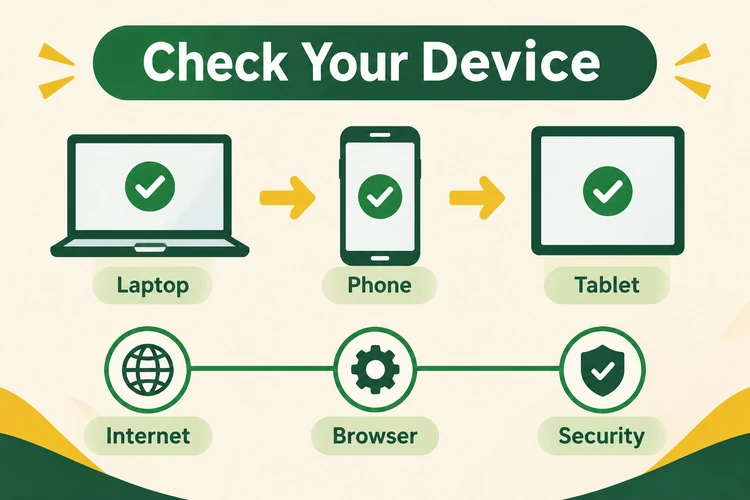
These steps help separate a device problem from a page or account error. If several unrelated websites fail, investigate the connection first. If only one browser has trouble, test another browser before changing account settings or downloading anything.
Step 1: Confirm the Operating System
Open Settings and find About phone on Android, or General and About on iOS. Menu names vary by manufacturer. Use the system's software update screen to install an available update, allowing enough battery and time for the restart before continuing.
Step 2: Test the Connection
Switch between Wi-Fi and mobile data, reload the page and open another website. Change one setting at a time so you can identify what helped. Avoid entering credentials over shared public Wi-Fi; use a network you trust.
- Outdated browser: install the browser update through its normal app store.
- Unstable connection: move closer to the router or test mobile data.
- Low storage: remove unused downloads before saving an installation file.
- Blocked pop-ups: inspect the browser notice rather than enabling pop-ups globally.
- Wrong device settings: review site permissions without disabling device protection.
Practical Ways to Access Mobile
-
Browser First
Open web access without handling an installation package. Start by testing page loading and navigation in the browser already on your phone.
-
Phone Screen Controls
Use portrait mode to assess text size and button spacing. Test menus and forms before entering account details or starting a transaction.
-
Saved Entry Point
A home-screen shortcut reduces repeated address typing. It saves a route to the website without requiring a separate Android installation package.
-
Deliberate Account Access
Keep sign-in and sign-out part of your mobile routine. Avoid saving credentials on borrowed devices, and close the session explicitly when finished.
Open the Mobile Site
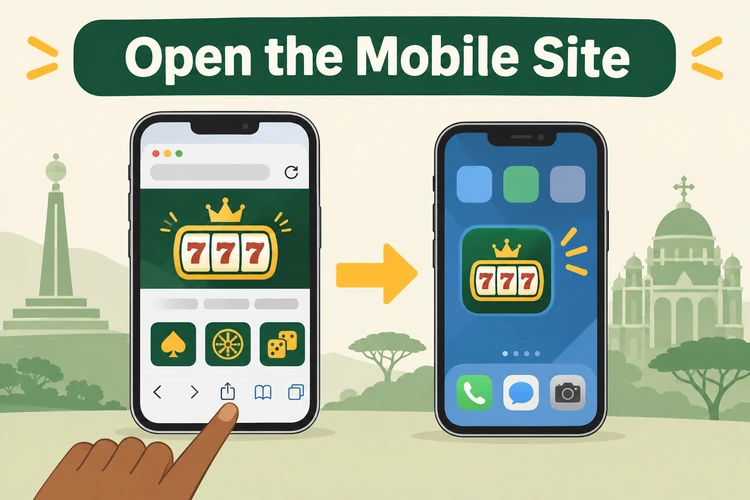
Want access without installing a file? Open the Lucky Bet mobile version in your browser. Wait for the initial page to finish loading before tapping controls. Text should fit the screen, and buttons should remain usable without repeatedly zooming in and out.
Step 1: Enter the Site Address
Type the intended address carefully or use a previously saved bookmark. Avoid random advertising links and lookalike domains. Inspect the address bar before entering personal details, and stop if the browser displays a connection warning. A padlock alone does not establish the identity of a website.
Step 2: Check the Loaded Page
Open the menu and locate the sign-in control. Test whether navigation responds and whether the keyboard covers any form fields. Rotate the phone once if content is cut off, then return to portrait mode. Avoid repeatedly tapping a button while the page is still loading.
Use the browser's Add to Home Screen action for a convenient shortcut. This saves an entry point to the website; it does not install a standalone Lucky Bet mobile app. Browser menus differ, so the action may appear under Share or the main menu.
Install the Android App
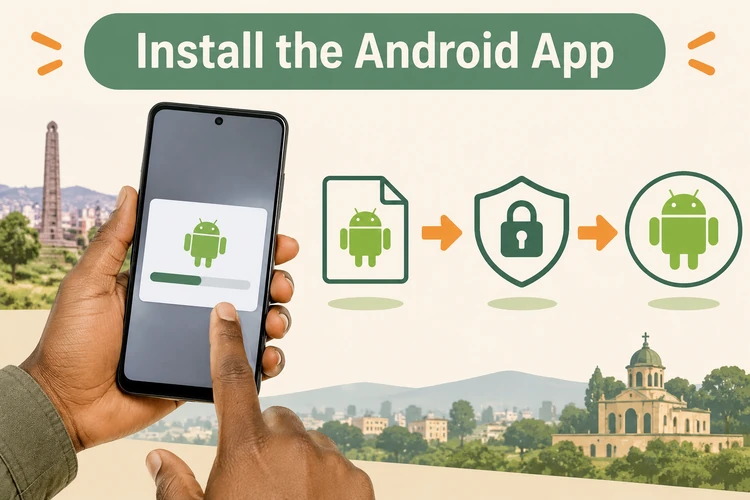
Working with an Android installation file? Treat the download and installation as separate steps. An APK is executable software, not a webpage. The procedure below applies to an authenticated Lucky Bet Android app file; a matching name or icon alone does not authenticate software.
Step 1: Find the Download Source
Use a download reached directly through the brand's own service, not a third-party APK directory or an advertising redirect. Stop if the download leads to an unrelated service. Do not provide account credentials to a file-hosting page or install another program just to obtain the file.
Step 2: Download the APK File
Start a Lucky Bet APK download only with a trusted download origin, a stable connection and enough storage. Let the transfer finish before opening the file. Repeated taps can create duplicate downloads; use the browser's download list to follow progress instead.
Step 3: Complete the Installation
Read the Android installation prompt. If installation permission is required, limit it to the browser or file manager handling this file, then revoke it afterward. Cancel on security warnings or unexplained access requests. Do not disable device protection to force installation.
An installed APK appears among your applications; a browser page remains web access. If installation fails or the application behaves suspiciously, stop, remove the file and return to browser access. Repeatedly installing the same failing package will not resolve a compatibility problem.
- Source: avoid files forwarded through chats or public file-sharing links.
- File name: identify the intended download without treating its name as proof of safety.
- Permissions: reject unexplained requests for device access.
- Device compatibility: do not force an installation rejected by Android.
- First launch: stop if the application opens unrelated content.
Use an iPhone
Using an iPhone or iPad? Start with browser access rather than an Android file. APK packages cannot be installed on iOS. A home-screen icon is not proof of a native Lucky Bet app for iPhone, because websites can have shortcuts too.
Step 1: Open the Browser Version
Launch Safari or your usual browser and enter the intended address. Wait for loading to finish, then test the menu and sign-in control. Keep the browser in normal browsing mode during troubleshooting so private-session behaviour does not complicate the test.
Step 2: Add a Home Screen Shortcut
In Safari, open Share and choose Add to Home Screen. Review the destination, give the shortcut a recognisable name and tap Add. The resulting icon launches web access rather than installing an Android package or proving that a native application exists.
If the screen stays blank or repeatedly reloads, close the tab and reopen it. Test the connection before clearing temporary website data. Clearing cookies can sign you out, so keep your account credentials available and avoid deleting saved passwords unnecessarily.
Sign In and Test Features
Ready to use your account? Test Lucky Bet login on mobile before making a transaction. Find the sign-in control, enter your credentials privately and wait for the account view. Do not save a password on a borrowed phone or share a one-time security code.
Step 1: Sign In
Enter your credentials once and submit the form. If access fails, read the error rather than repeating attempts with different passwords. Our Lucky Bet login guide covers account access and recovery separately. Keep account troubleshooting distinct from browser or installation problems.
Step 2: Check the Main Functions
Test Lucky Bet gaming on mobile by opening the catalogue and returning to your profile. Try the sports section if it is present. Focus on readable controls and responsive navigation. For promotion-related questions, use the separate Lucky Bet bonus guide; installing software does not itself establish bonus eligibility.
Welcome
Welcome Offers on Mobile
Treat a welcome offer as separate from software installation: downloading a file does not establish eligibility. Keep offer activation and any required steps separate from testing your mobile access.
Step 3: Test the Session
Sign out explicitly, then sign in again. Closing a tab is not the same as logging out. On a shared phone, finish by signing out and declining password storage. A browser retrieves website updates, while installed software has a separate update process; do not assume identical controls.
Fix Common Problems
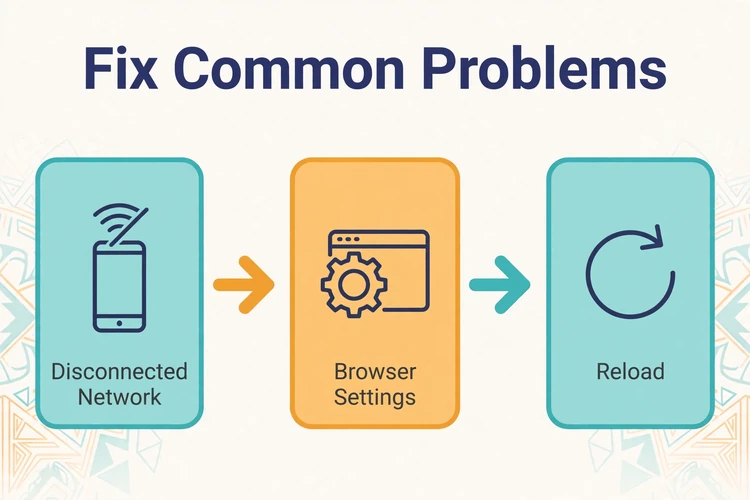
Which action fails? Identify whether the problem concerns loading, installation, navigation or account access. Repeat the smallest failing action after one adjustment. Keep the error wording, but remove passwords and personal details from any screenshot you retain.
The Page Will Not Load
Inspect the typed address, open another website and switch networks once. Restart the browser if other sites load normally. Use a fresh tab before clearing website data. Never bypass a browser security warning simply to reach the sign-in form.
The APK Will Not Install
Read the Android error and inspect available storage and installation permissions. An incomplete file needs a fresh download from the same authenticated origin, not another APK catalogue. If Android rejects compatibility or raises a security warning, stop rather than forcing the process.
The App Stops Working
Close the application, restart the phone and retry once. Clear temporary cache before considering deletion of application data, which can remove saved settings. Lucky Bet app safety takes priority over forcing a launch: remove suspicious software and use the browser instead.
| Problem | Relevant setting | Next action |
|---|---|---|
| Page does not load | Connection and address | Test another site and reopen the page. |
| Wrong display | Zoom and browser cache | Reset zoom and reload. |
| APK installation error | Storage and installation permission | Read the system error before retrying. |
| App crash | Temporary cache | Restart, then clear cache. |
| Login button does not respond | Page loading | Wait, then reload once. |
| Session closes | Private mode and cookies | Use normal browsing and sign in again. |
Choose the Right Option
Which route suits your phone? Start with the mobile site and test the account and controls. Choose installation only for an authenticated Android file and a clear practical reason. A shortcut reduces address typing without adding a separate software package.
Before settling on a method, review the destination, download origin and permissions. Test both sign-in and sign-out, not just the opening screen. Compare the same tasks on the same connection; otherwise, a network change can make one route appear faster without demonstrating a real difference.
| Option | How to access | Installation needed | Best for | Permission scope |
|---|---|---|---|---|
| Mobile browser | Enter the site address. | No. | Starting without a download. | Browser site permissions. |
| Home-screen shortcut | Save through the browser menu. | No separate package. | Reopening a saved destination. | Website permissions. |
| Android APK | Open an authenticated package. | Yes. | Deliberate standalone installation. | Android application permissions. |
| iPhone browser access | Open the site in a browser. | No. | Web access on iOS. | Browser site permissions. |
Judge your experience by completed tasks, readable controls and reliable sign-out. A successful launch alone does not establish that every function works.
Editorial notes from the guide
5.0/5
I check whether a page names Ethiopia before trusting its Lucky Bet details. For sportsbook information, that country match matters more than a familiar logo or a similar domain.
4.0/5
I treat a bonus headline as a prompt to find the terms, not as a guaranteed benefit. On a phone, I would check that the conditions identify the same brand and market.
5.0/5
I separate an information page from an account destination before considering login. When reading sportsbook guidance, I check the web address rather than assuming a button proves who operates it.
5.0/5
I look for clear country context when comparing betting information. A page about sports bets should not be taken as confirmation of payment options or account services unless those details are established.
Prepare the device, open browser access and test the account before considering an Android installation. The Lucky Bet overview covers the brand beyond mobile setup. Access is for 18+ only; set spending limits and practise responsible gambling.
Start With Browser Access
Open the mobile site, test navigation and sign in before deciding whether you need a separate installation.
Frequently Asked Questions
A mobile website and a home-screen shortcut are not evidence of a standalone application. You can follow the browser-access steps without downloading an installation package.
Launch your browser and enter the intended site address or use a saved bookmark. Wait for loading to finish, then test the menu and sign-in control. No APK installation is involved.
Avoid third-party APK directories, forwarded files and advertising redirects. Use only an authenticated download reached through the brand's own service, and stop on security warnings. A filename or logo does not prove a file is safe.
Use the browser-access route on an iPhone rather than an Android package. You can save a home-screen shortcut through Safari's Share menu. APK files cannot be installed on iOS.
Read the Android error, then inspect storage and the installation permission for the browser or file manager involved. Do not bypass compatibility errors or security warnings. Return to browser access instead of forcing installation.
A mobile website runs through a browser, while an Android application requires an installed package. A home-screen shortcut still provides web access. Do not assume identical features or account behaviour merely because the opening screens look similar.